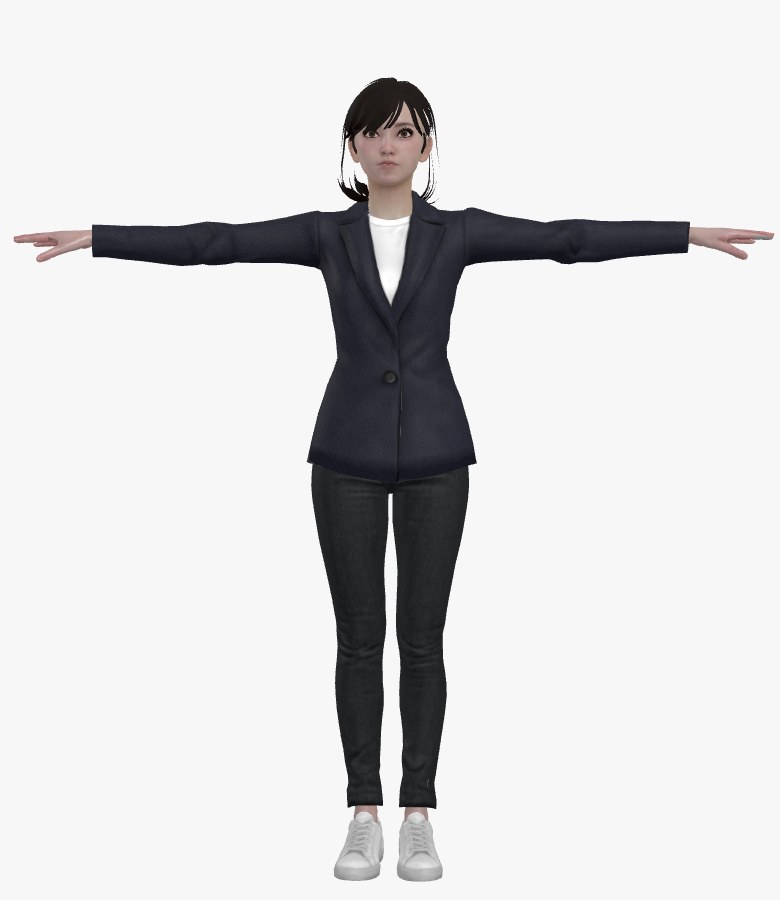
FBX to VRM Converter
Convert a rigged FBX character into a VRM 1.0 avatar directly in your browser. Humanoid bones are detected automatically, and the file is never uploaded — everything runs on your device.
Best results: Mixamo-rigged FBX (binary FBX 2013+). The output is a
.vrm file
based on the VRMC_vrm 1.0 extension.
An FBX usually references its textures as separate image files. Select them together with the .fbx (or drag the whole folder contents in) and they will be applied and written into the .vrm. Textures already embedded inside the FBX are handled automatically.
Once the model is open, step 4 lists every material and lets you attach images to the ones that arrived bare — you can add image files there at any point, without reloading the .fbx.
The blue arrow marks the VRM front direction (+Z).
A VRM file is the standard avatar format used by VTuber software, virtual meeting tools, and browser-based 3D apps. Most character models, however, are distributed as FBX — especially anything rigged through Mixamo. Converting between the two normally means installing Unity with UniVRM, or Blender with the VRM add-on.
This free FBX to VRM converter does the same job in your browser. Select a rigged FBX file, check the humanoid bone mapping, and download a .vrm file. Nothing is uploaded — the model is parsed, converted, and written to a file entirely on your own device.
The output uses the VRMC_vrm 1.0 extension, which is the current VRM specification. Every exported file is checked against the specification before the download starts, so you know whether the result is valid before you load it anywhere else.
Table of Contents
- What This FBX to VRM Converter Does
- How to Convert FBX to VRM
- Mixamo to VRM Workflow
- Humanoid Bone Mapping Explained
- Textures and Materials
- Why VRM Requires a T-Pose
- Scale and Front Direction
- VRM Metadata and License Settings
- Limitations You Should Know
- Troubleshooting
- Privacy and Local Processing
- FAQ
What This FBX to VRM Converter Does
A VRM file is a glTF binary file with an extra extension block that describes the avatar: which node is the head, which nodes are the arms and legs, who made it, and what other people are allowed to do with it. Converting FBX to VRM therefore involves three separate jobs.
- Reading the FBX mesh, skeleton, materials, and skin weights.
- Deciding which bone in the skeleton corresponds to each VRM humanoid bone.
- Writing a glTF binary file with the
VRMC_vrmextension and the correct metadata.
The tool handles all three. Bone mapping is detected automatically from the bone names, and every detected bone is shown in an editable list so you can correct anything that was matched incorrectly before exporting.
Fifteen humanoid bones are required by the VRM specification: hips, spine, head, the upper arm, lower arm and hand on both sides, and the upper leg, lower leg and foot on both sides. Optional bones such as the neck, chest, shoulders, toes and all thirty finger bones are exported as well when they exist in the rig.
How to Convert FBX to VRM
- Select your rigged FBX file, or drag it onto the preview area.
- Check the preview. The blue arrow on the floor points along +Z, the direction a VRM avatar must face.
- Set the target height. FBX files are usually authored in centimetres, so a character often arrives one hundred times too large.
- Review the bone mapping. Required bones are marked with a check when mapped and a cross when missing.
- Attach any textures the model did not bring with it. Every material is listed with the mesh it belongs to; images you selected are matched by name, and anything still bare you point at yourself.
- Enter the avatar name, author, and license permissions.
- Press convert. The file is validated and then downloaded as
.vrm.
The conversion log below the tool records every decision that was made — the detected rig type, the rotation applied, the scale factor used, and the full validation report. If something looks wrong in another application later, the log usually explains why.
Mixamo to VRM Workflow
Mixamo is the most common source of rigged FBX characters, and its skeleton uses a fixed naming scheme: mixamorig:Hips, mixamorig:LeftArm, mixamorig:LeftForeArm, and so on. The converter recognises this scheme directly and maps all fifty-two humanoid bones, including every finger joint, without any manual work.
When you download from Mixamo for this purpose, choose the T-pose option rather than an animation, and use FBX Binary. A character downloaded with an animation still converts, but its rest pose may not be a clean T-pose, and VRM expects one.
Rigs from other sources — Blender exports, VRoid FBX exports, 3ds Max Biped skeletons, Unreal-style upperarm_l naming — are handled by a general name analyser instead. It splits names on camel case, underscores and separators, works out which side each bone belongs to, and scores every candidate against each humanoid slot.
Names alone are not always enough, because some rigs name the joint rather than the limb hanging below it. In those skeletons LeftHip is the thigh, LeftKnee the shin, LeftCollar the clavicle and LeftShoulder the upper arm — the last one meaning the opposite of what the same word means in a Mixamo rig. Where a name is ambiguous the converter falls back on the skeleton itself: if the joints above and below a slot are already identified, the bone sitting between them can only be the missing one. That is how a thigh called Hip still lands in the upper leg slot. Anything that remains unresolved is left blank for you to set manually.
Humanoid Bone Mapping Explained
VRM does not care what your bones are called. It cares that the file states which node is the left lower arm, so that motion capture data, animations, and retargeting systems written for a completely different avatar still work on yours. That mapping is the single most important part of the conversion.
Two mistakes are common. The first is confusing the upper and lower arm, because many rigs call the upper arm simply "Arm". The second is mapping a finger bone to the hand slot, because finger bones are often named LeftHandIndex1 and contain the word "Hand". The matcher in this tool rejects both cases explicitly.
If your avatar ends up with a broken elbow or a wrist that bends the wrong way in a VTuber application, open the bone list and check the four arm slots first. Correcting them and re-exporting takes a few seconds.
Textures and Materials
An FBX does not contain its textures. It contains the paths they had on the machine that exported it, usually absolute Windows paths that mean nothing anywhere else. Select the image files together with the .fbx and they are matched by file name, applied to the materials, and written into the .vrm. PNG, JPEG, WebP, BMP, GIF and TGA are all accepted. Targa is worth calling out: character maps baked in Substance Painter or 3ds Max are usually .tga, and no browser can decode one on its own.
The harder case is a material that references nothing at all. An FBX only carries the textures its materials were actually assigned before export, so a character whose maps were baked in Substance Painter but never wired into the scene arrives completely bare, and no amount of selecting files will attach them by itself. The Materials & textures step exists for that: every material is listed with the mesh it sits on, and each of its slots — base colour, normal, roughness, metallic, emissive, opacity — can be pointed at any image you selected. Files whose names share a word with the material or its mesh are matched for you first, which is usually most of them, since subs_Body_BaseColor.tga and a material called Body are not hard to pair. Whatever is left you set by hand.
Images can be added at any point after the model is open, from the same step, and the .fbx is not read again — nothing you have already set is disturbed. This matters more than it sounds, because character maps are usually spread across several folders, one for the body, one for clothing, one for hair, and picking them all in a single file dialog is awkward. Dropping images onto the preview of an open model adds them the same way.
Two conversions happen on the way out, because glTF stores these differently from FBX. Opacity has no texture of its own in glTF, so an opacity map is composited into the base colour's alpha channel; a mask that is almost entirely opaque or transparent, as hair cards are, becomes a cutout rather than a blend, which is what stops strands sorting against each other. Metallic and roughness are packed into a single image, green channel and blue channel, as the format requires.
One thing is worth checking before you begin. Maps sitting in a folder beside the model are not evidence that the model uses them: if those images were never assigned to the materials in the 3D application, the FBX records no reference at all, and the character arrives bare however many files you select. The materials list makes this visible — a material showing no filled slots had nothing attached to it at export time, and the fix belongs upstream, in the scene, not here.
Why VRM Requires a T-Pose
VRM defines the rest pose of an avatar as a T-pose: arms straight out to the sides, palms down, legs together. Applications rely on this so that an animation authored for one avatar produces the same result on another.
Many FBX characters ship in an A-pose, with the arms hanging at roughly forty-five degrees. Enable "Force T-pose" and the converter rotates each upper arm so the line from shoulder to hand becomes horizontal, then exports that as the rest pose. The mesh follows the skeleton, so the result is a genuine T-pose rather than a visual trick.
If the arms are already horizontal, the option does nothing and says so in the log.
Scale and Front Direction
VRM works in metres. A typical Mixamo character is around 180 units tall because the FBX was authored in centimetres, which makes the avatar roughly a hundred times too big in any VRM application. Leave "Normalize scale" enabled and set a realistic height — 1.6 to 1.8 metres for an adult character — and the model is rescaled and placed with its feet on the floor.
Direction matters just as much. A VRM avatar must face +Z, and the character's left hand must be on the +X side. The converter works out which way your character is facing by comparing the ankle and toe positions, since toes always point forward, then rotates the model to match. If your rig has no toe bones the detection is skipped, and you can pick the rotation manually from the dropdown while watching the blue arrow in the preview.
VRM Metadata and License Settings
Unlike FBX or GLB, a VRM file carries its own license terms inside the file. Applications read them and can refuse to load an avatar whose terms do not allow what the user is trying to do. These fields are part of the specification, not optional decoration, so fill them in honestly.
- Who may use this avatar — author only, explicitly licensed people, or everyone.
- Commercial use — personal non-profit, personal with profit, or corporate use.
- Modification — whether others may edit the model, and whether they may redistribute their edits.
- Credit notation — whether you must be credited when the avatar is used.
- Content flags — violent, sexual, political or religious, and antisocial use.
If you are converting a model you did not create, the original license still applies. Converting a file format does not grant you rights you did not already have, and the metadata you write should reflect the terms you actually received.
Limitations You Should Know
This converter produces a structurally valid VRM 1.0 avatar with geometry, materials, skinning and a full humanoid definition. Several VRM features cannot be derived from an FBX file, because the information simply is not there.
- Expressions and blend shapes are exported as an empty set. FBX blend shape names do not map onto VRM expression presets reliably, so lip sync and facial expressions need to be authored afterwards.
- Spring bones — the physics used for hair and clothing — are not generated. FBX has no equivalent data.
- MToon materials are not applied. Materials are converted to standard glTF PBR, which every VRM application can render, but the flat anime shading style of MToon has to be set up separately.
- Look-at is configured with default bone-based values rather than tuned eye ranges.
- VRM 0.x is not produced. Output is VRM 1.0. Most current software reads it; some older tools still expect 0.x.
In other words, this tool gets you a working, correctly rigged avatar. Polishing it into a fully expressive VTuber model is still a job for UniVRM or the Blender VRM add-on — but you start from a valid file instead of a conversion problem.
Troubleshooting
The convert button stays disabled. At least one required bone is unmapped. The status line lists exactly which ones — set them by hand in the bone list.
Nothing appears in the preview. The FBX may contain no mesh, or only a skeleton. The log reports the mesh and bone counts after parsing.
The file will not open at all. FBX comes in a binary and an ASCII flavour, and the ASCII one stores texture links in a form the loader cannot always resolve. Re-export it as binary — in 3ds Max or Maya, Export → FBX → Advanced Options → FBX File Format → Type: Binary — and leave every other setting alone. The log says which flavour it read.
The avatar faces backwards. Auto detection needs toe bones. Choose "Rotate 180°" manually and confirm against the blue arrow.
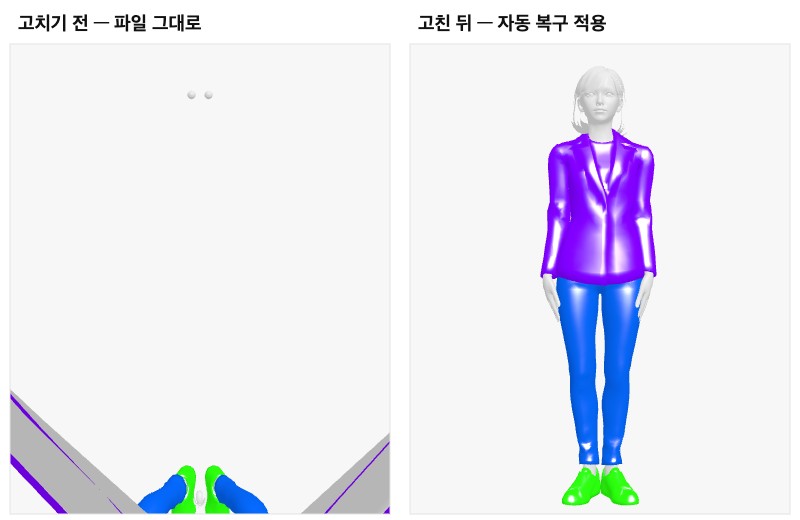
The character is melted — limbs stretched across the body, arms folded into the face. Some exports flatten the skeleton on the way out: every bone ends up sitting exactly on its parent, and skinning then drags the whole mesh toward the origin. The rest pose is not lost, though, because the skin's bind matrices still describe it. The converter detects this and rebuilds the skeleton from them, and the log says how many bones it put back. If you see that line, nothing is wrong with your file beyond the export setting that caused it — re-exporting with the skeleton in its bind pose avoids it next time.
The .vrm is enormous. Textures are written into it uncompressed, so a dozen 4K maps will push a character past 100 MB and make it slow to load, or refuse to load at all, in VTuber software. The texture size limit under Materials & textures scales the written images down; 2048 px is a sensible default and 1024 px is usually indistinguishable on a character seen at normal distance.
The model has no textures. An FBX usually points at its textures as separate image files, using the absolute path they had on the machine that exported it — a path that means nothing on yours. Select those image files together with the .fbx and they are matched by file name, applied to the materials, and written into the .vrm. PNG, JPEG, WebP, BMP, GIF and TGA are all accepted; TGA matters here because character maps baked in Substance Painter and 3ds Max are usually Targa, and no browser can display one without help. The log reports which references were matched and which are still missing. Textures already embedded inside a binary FBX need no extra files.
A reference the FBX carries but nothing can satisfy — a texture slot left dangling by the export — is dropped rather than allowed to stop the conversion, and the log names each one.
A material that references nothing at all is a different problem, and the one most character exports actually hit. Textures and Materials above covers it.
Parsing fails outright. Very old ASCII FBX files, or FBX 6.x, are not supported. Re-export as FBX Binary 2013 or newer.
Privacy and Local Processing
The FBX file you select never leaves your device. It is read with the browser file API, parsed in memory, and written back out as a download. There is no upload, no server-side conversion queue, and no copy of your model stored anywhere.
This also means conversion speed depends on your own machine, and that very large FBX files may take a while to parse or may exhaust memory on a phone. A desktop browser is recommended for characters above roughly fifty megabytes.
FAQ
Is this FBX to VRM converter free?
Yes. There is no sign-up, no watermark, and no file size limit other than what your browser can handle.
Does it work with Mixamo characters?
Yes. Mixamo rigs are detected automatically and all fifty-two humanoid bones, including fingers, are mapped without manual work.
Which VRM version does it output?
VRM 1.0, using the VRMC_vrm extension. VRM 0.x is not produced.
Will the avatar work in VTuber software?
The humanoid rig, mesh and materials will work. Facial expressions, lip sync and hair physics are not carried over from FBX and need to be added afterwards.
Is my model uploaded anywhere?
No. All parsing and conversion happens in your browser on your own device.
Can I convert a VRM back to FBX?
Not with this tool. It converts in one direction only.